
Starter
1–5 trucks
$299/month
ATHENAIQ TRUCKING OS
Your product guide to the owner workspace: explore the screens, prepare your records and review the scope before choosing a plan.
Monthly or annual payment upfront. Billing & cancellation details.
A silent cinematic introduction to AthenaIQ Trucking OS, from the truck and warehouse to the office and the current AthenaIQ website.
TRUCKING OS PRICING
1–5 trucks
$299/month
6–25 trucks
$699/month
26–100 trucks
$1,299/month
Monthly or annual payment upfront. No free trial. Enterprise pricing is custom.
See annual options, inclusions and billing terms →CLOSE TO THE WORK
Use this guide alongside the actual interface captures. Start with the records your operation needs, then check the current access and connection scope.
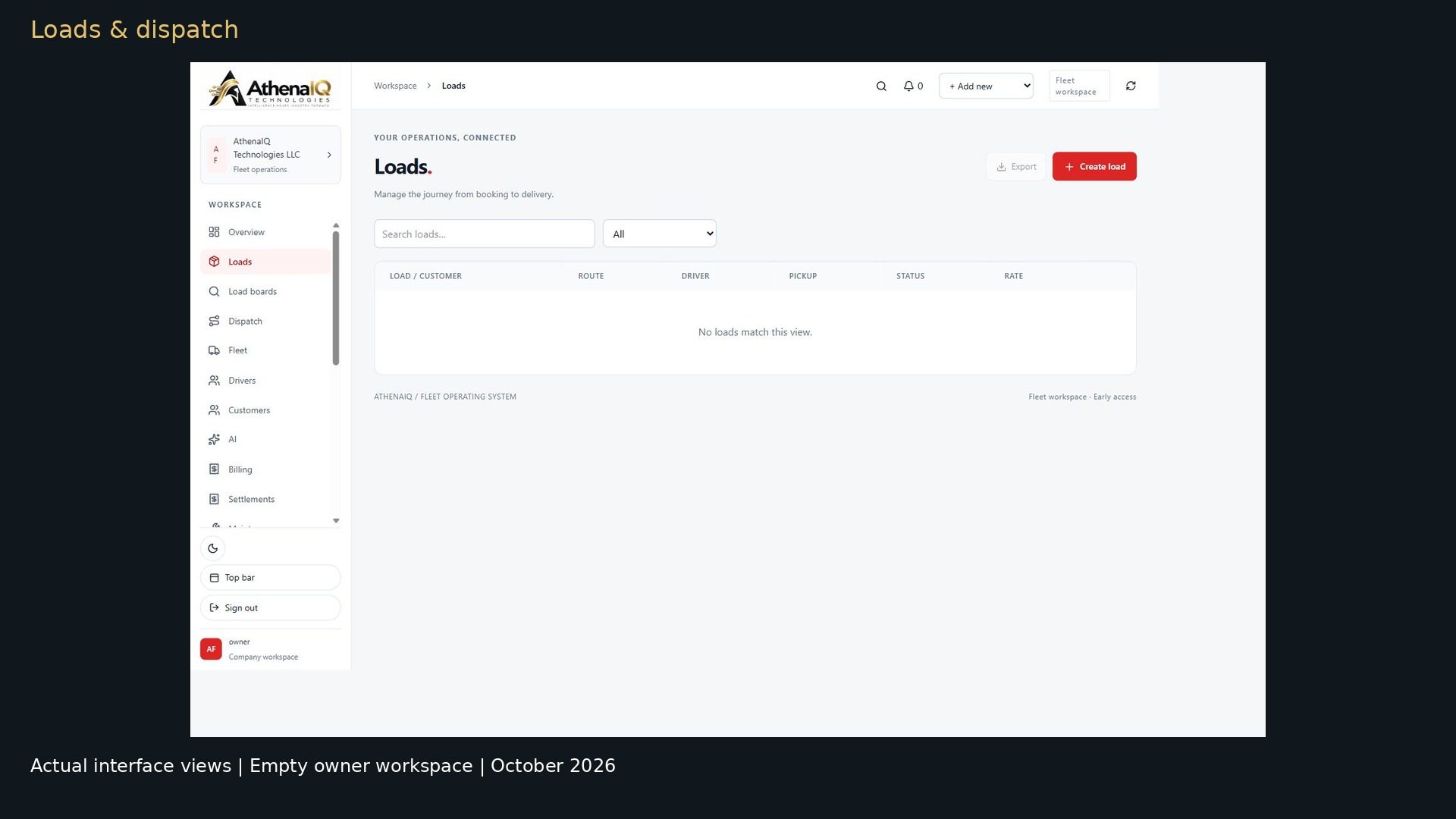 01 / LOADS & DISPATCH
Prepare your customer, pickup, delivery, driver and vehicle details. The load and dispatch views show where those records come together.
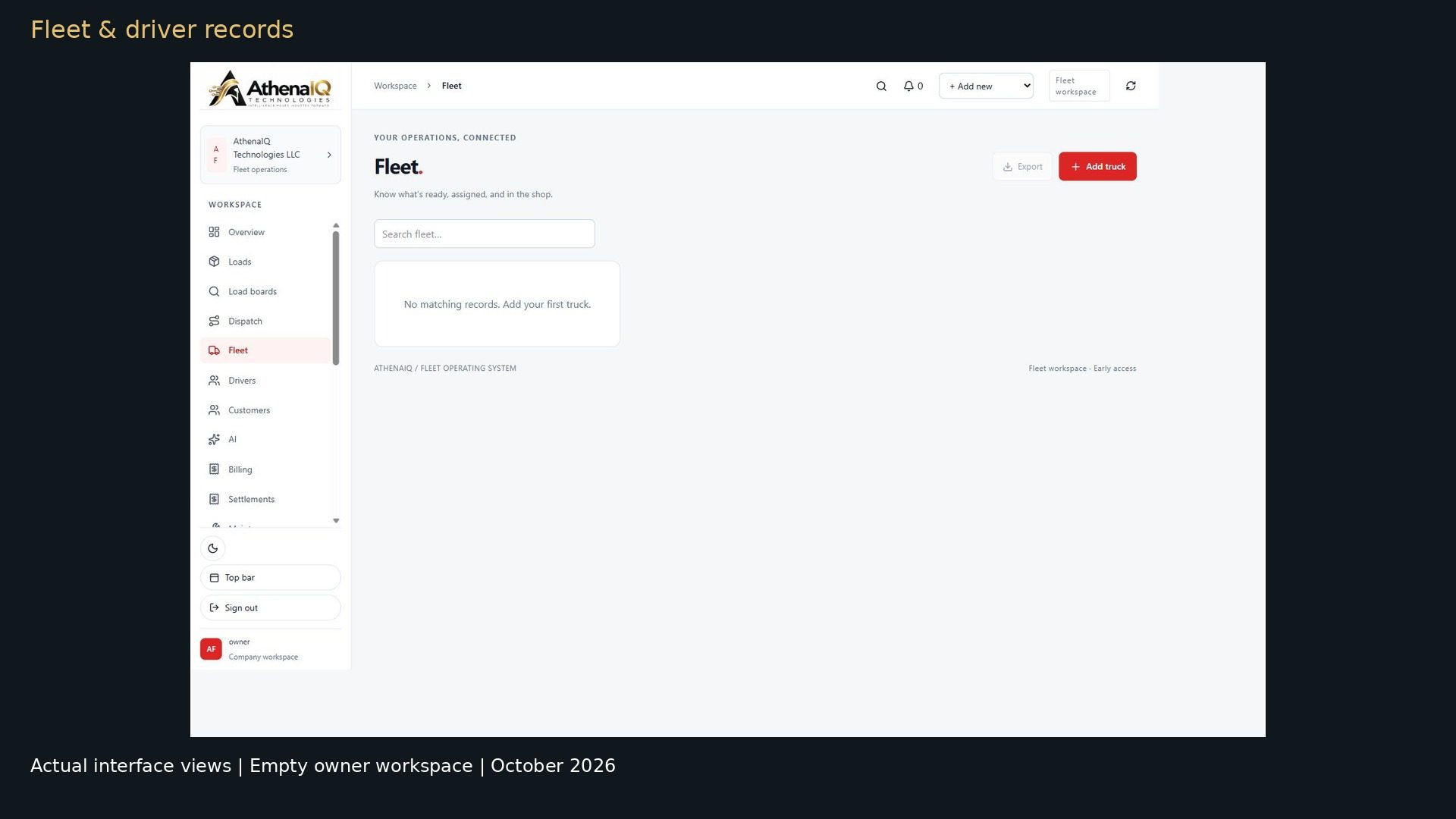 02 / FLEET & DRIVERS
Review the vehicle and driver record screens. Confirm the staff and driver permissions you need before purchasing.
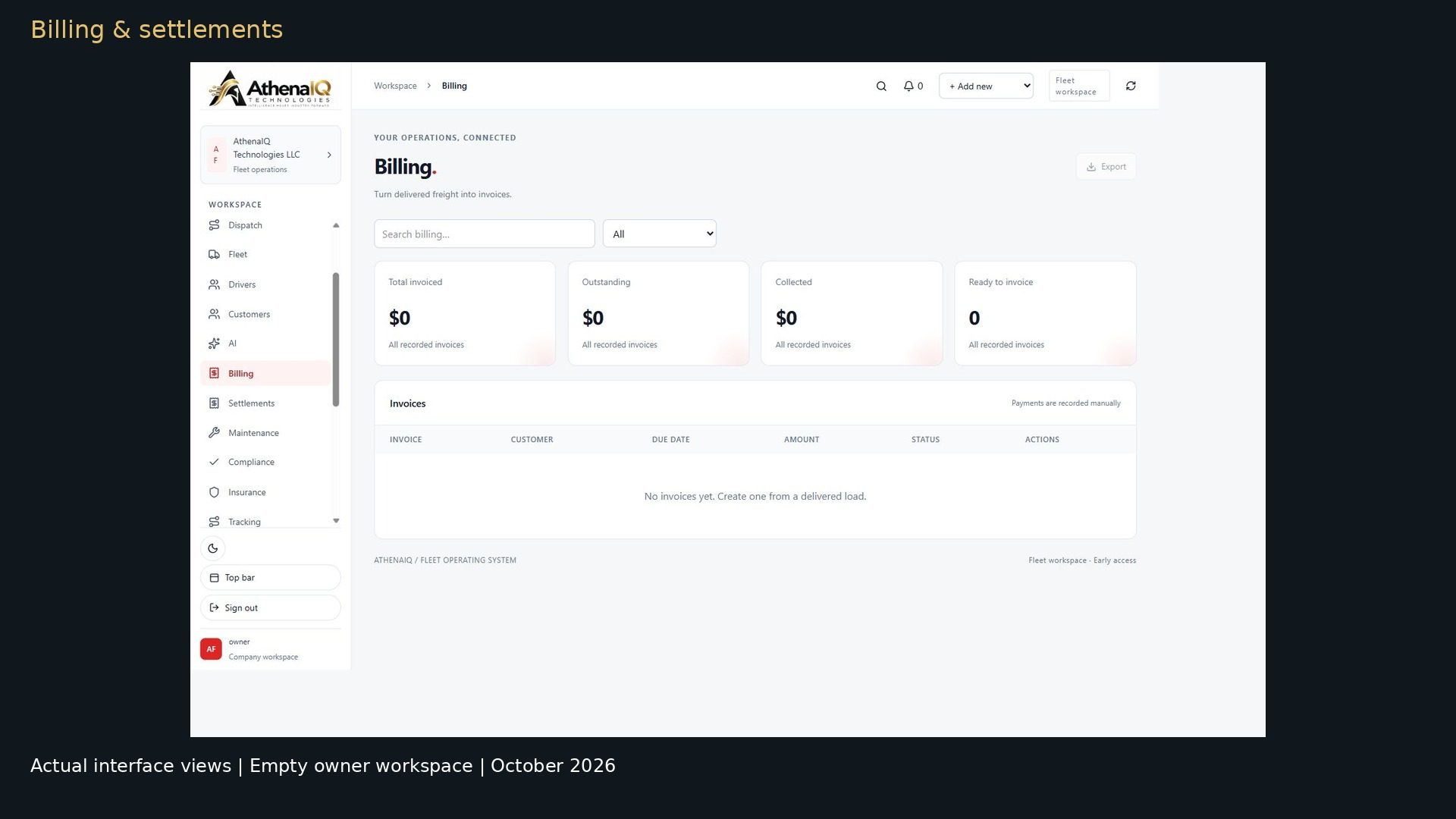 03 / BILLING & SETTLEMENTS
Explore the invoice and settlement views. Confirm your accounting and payment requirements against the published connection status.
Actual interface captures · Empty owner workspace · Select a screen to enlarge.
AFTER-HOURS AI VOICE SUPPORT
Drivers can call the AI for assigned load details and delivery ETA. Log-time answers use connected fleet data. Urgent roadside requests can be relayed to dispatch or the owner.
Confirm covered hours, included usage, extra charges and escalation contacts before subscribing. This service is not a substitute for emergency services.
Ask about driver phone support →SEE THE ACTUAL INTERFACE
A 42-second tour of the owner workspace, with chapters, captions and transcripts.
You can still read the transcripts or explore the screenshots.
42 seconds · Three chapters · Captions and transcripts
The actual load list in an empty owner workspace.
An unsaved load form. No customer, driver or vehicle is selected.
The dispatch board. No assignment or completed transaction is demonstrated.
The actual fleet list. This empty workspace contains no vehicle records.
The actual driver list. No driver record is added in this tour.
The invoice view. No payment entry is shown.
The settlement view. No funds are transferred in this tour.
Captured October 2026 · Interface navigation in an empty owner workspace. Completed transactions and customer results are not shown.
BEFORE YOUR FIRST WORKSPACE
Gather your fleet details, records and existing tools.
List your truck count, who needs access and their required workflows.
List your record types and file formats. Confirm import support and setup costs before sharing records.
Name your ELD and accounting tools. Check compatibility and the data your fleet needs.
Keep passwords, payment details and operational records out of your initial inquiry. Agree on any setup or import work in writing.
BEFORE YOU START
Standard plans share the current owner workspace and differ by fleet size.
| Area | What to know |
|---|---|
| Owner workspace | Load, dispatch, fleet, driver, invoice and settlement views. |
| Team and driver access | Not demonstrated in these tours. Confirm the permissions you need before purchase. |
| Provider connections | Review the connection status. Keep the ELD and accounting tools your business requires. |
Start with the setup checklist. Agree on import scope and any costs before sharing records.
Read the published data and security details and subscription terms. Written help is available at Contact AthenaIQ; a call is optional.
Read the complete product guide →YOUR PRODUCT GUIDE
Read answers, compare plans and create your company account online. An appointment is not required to explore or get started.
Yes. Read this guide and the published workflow information, compare plans and continue to the account page online. A call is optional help for a question that the guide and written support cannot resolve.
Trucking OS is for owner-operators and fleet teams organizing dispatch, fleet records and billing. Compare your required workflows with the published scope below. Check the published roadmap and confirm any required driver access or team permissions before purchase.
Review dispatch and loads, driver and vehicle records, maintenance, documents, invoicing, settlement records and reporting. Check the workflow topics and limitations below. Send any question about a required feature before paying.
Starter is listed for 1–5 trucks, Growth for 6–25 and Professional for 26–100. Enterprise requirements are scoped separately. Compare current prices and plan details, including monthly and annual billing. Planned team allowances are not currently included access.
No free trial is offered. Subscriptions are paid upfront for the selected monthly or annual period. Review the amount due, renewal amount and cancellation terms before confirming payment. See the billing answers and Terms of Service.
Continue to Create your account, review the Terms and Privacy Policy, and open the secure Trucking OS account page. Create your account, set up your company, then review your plan, payment method and upfront amount in Stripe checkout before subscribing.
Check the supported record types, file format and size limits before importing operational data. If you need setup or import assistance, send a written setup question and agree on scope and any costs first. Do not attach sensitive operational records to an initial inquiry.
Drivers can call the AI for assigned load details and delivery ETA. Log-time answers use connected fleet data. Urgent roadside requests can be relayed to dispatch or the owner. Answers depend on the data available to your fleet’s configured service. Confirm your fleet’s data connections, covered hours, call allowance and any extra usage charges before subscribing. Confirm your dispatch or owner escalation contacts in writing.
Do not assume that a listed office-user allowance includes a working driver app or shared team roles. Confirm the access your company needs before purchasing. Review the published roadmap before deciding whether the current scope fits your company.
ELD integrations are available. Confirm your provider, account permissions and data coverage. QuickBooks Online and other listed accounting connections remain planned. Review connection status.
Recorded invoice payments and settlement records do not move money or run payroll. Trucking OS does not replace an ELD, payroll provider or accounting system. Automated IFTA filing, load-board booking, factoring and QuickBooks sync are not available today.
The opening film follows a truck, warehouse and office. It is a promotional introduction. Use the actual interface captures, chaptered walkthrough and written product information below to review Trucking OS screens and current scope.
Send your question in writing, or email info@athenaiqtech.com. Include your fleet size, the workflow involved and the answer you still need. A call is a last resort for a question that remains unresolved.
No matching answer. Try another topic, clear your search or send a written question.
YOUR NEXT STEP
Explore the screens, read the answers and select the plan that fits your fleet.
A cinematic introduction to AthenaIQ, separate from the software walkthroughs above.